Wanna see something cool? Check out Angular Spotify 🎧
Fuzzy search everywhere on macOS with fzf and fd
I spend a lot of time jumping between project folders. Open a terminal, type cd, tab-complete through nested directories, realise I went the wrong way, backtrack. Repeat.
I wanted something faster. A global shortcut that opens a fuzzy finder, I type a few characters, hit enter, and I am in the right folder with my editor open.
That inspiration came from ThePrimeagen. I watched one of his courses on Frontend Masters last year about setting up the development environment. He mentioned having a global shortcut to open a fuzzy finder to jump to any folder. The tricky part? He did not exactly explain how he configured the workflow.
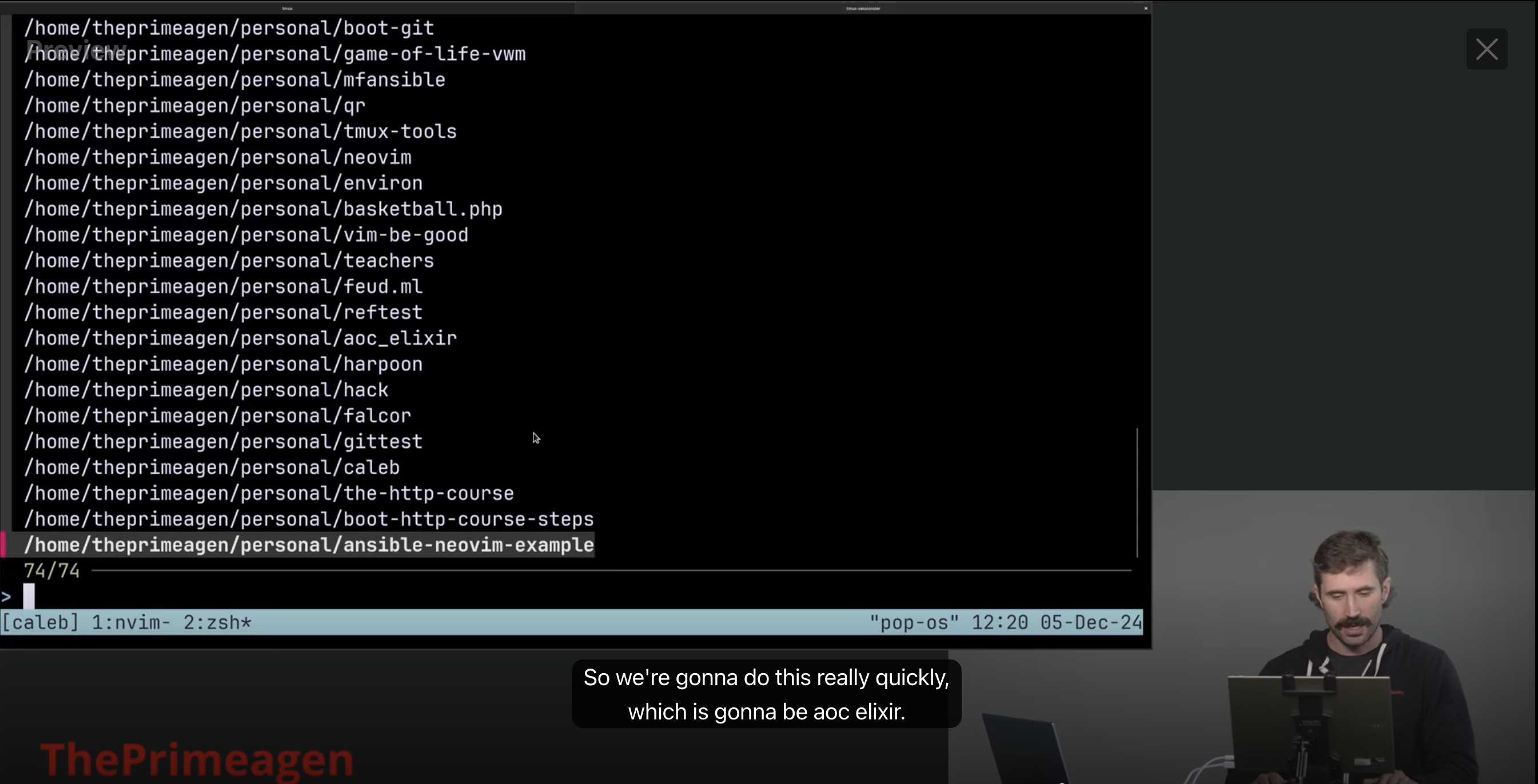
So I went looking, and found fzf.
What is fzf
fzf is a command-line fuzzy finder. You pipe a list of things into it, it lets you type to filter, and it returns what you pick. That is the whole idea.
Install it with Homebrew:
brew install fzfAfter installing, just type fzf in your terminal. It will list every file on your machine and let you search through them.
fzf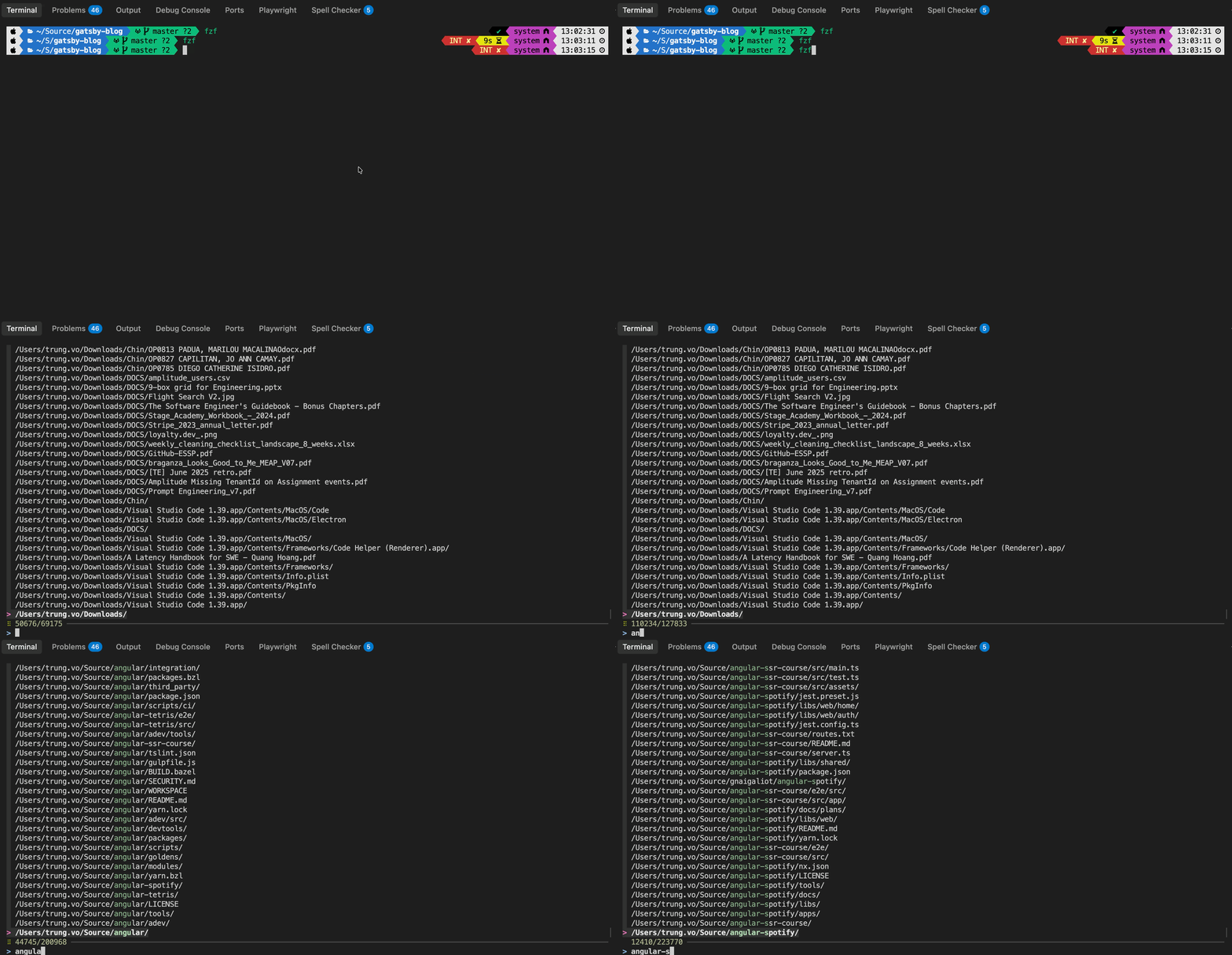
You type a few characters, the list narrows down, you press Enter, and it prints the selected path. Simple.
fzf preview
One useful feature is the preview window. You can tell fzf to show the content of whatever file you have highlighted:
fzf --preview 'cat {}'This opens a split view. The left side is your search list, the right side shows the file content. Useful when you are looking for a specific file but do not remember the exact name.
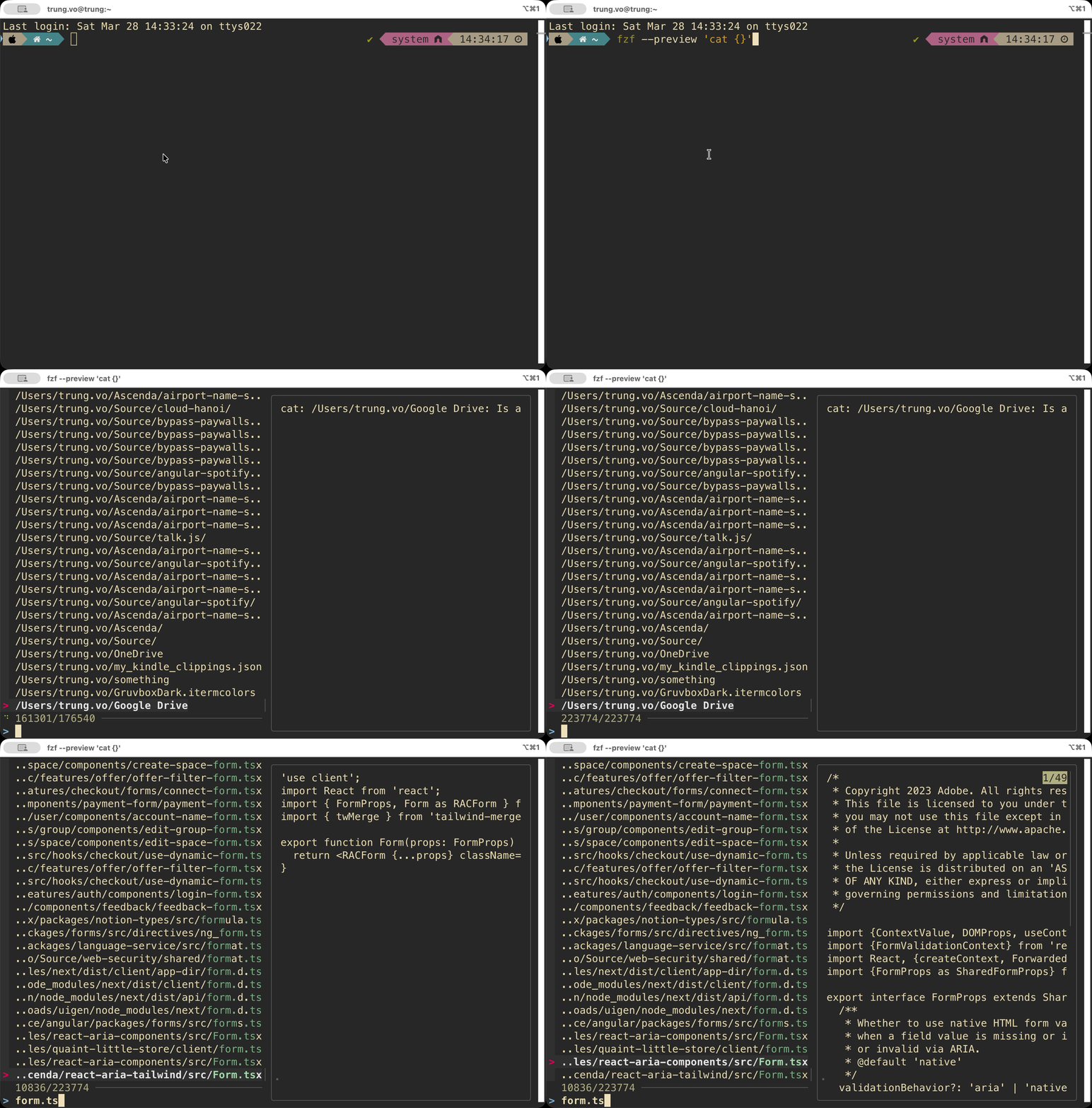
You can customise the preview command too. For example, if you have bat installed (a cat alternative with syntax highlighting):
fzf --preview 'bat --color=always {}'What I actually needed
The default fzf experience is nice for searching files. But what I wanted was different. I wanted to search for directories, not files. And when I pick one, I want it to open in my editor. Not print a path. Not cd into it. Just open the project.
So the question became: how do I list only directories, scope the search to folders I care about, and wire it up to a shortcut?
Why fd over find
By default, fzf uses find to list files. It works, but find is slow on large directory trees and has no concept of ignore rules. It will happily crawl through node_modules/, .git/, Library/, and every other folder you never want to see.
fd is a faster alternative to find. Two things make it worth switching:
- It is significantly faster, especially on large directory trees
- It respects
.gitignoreand.ignorefiles by default. See reference
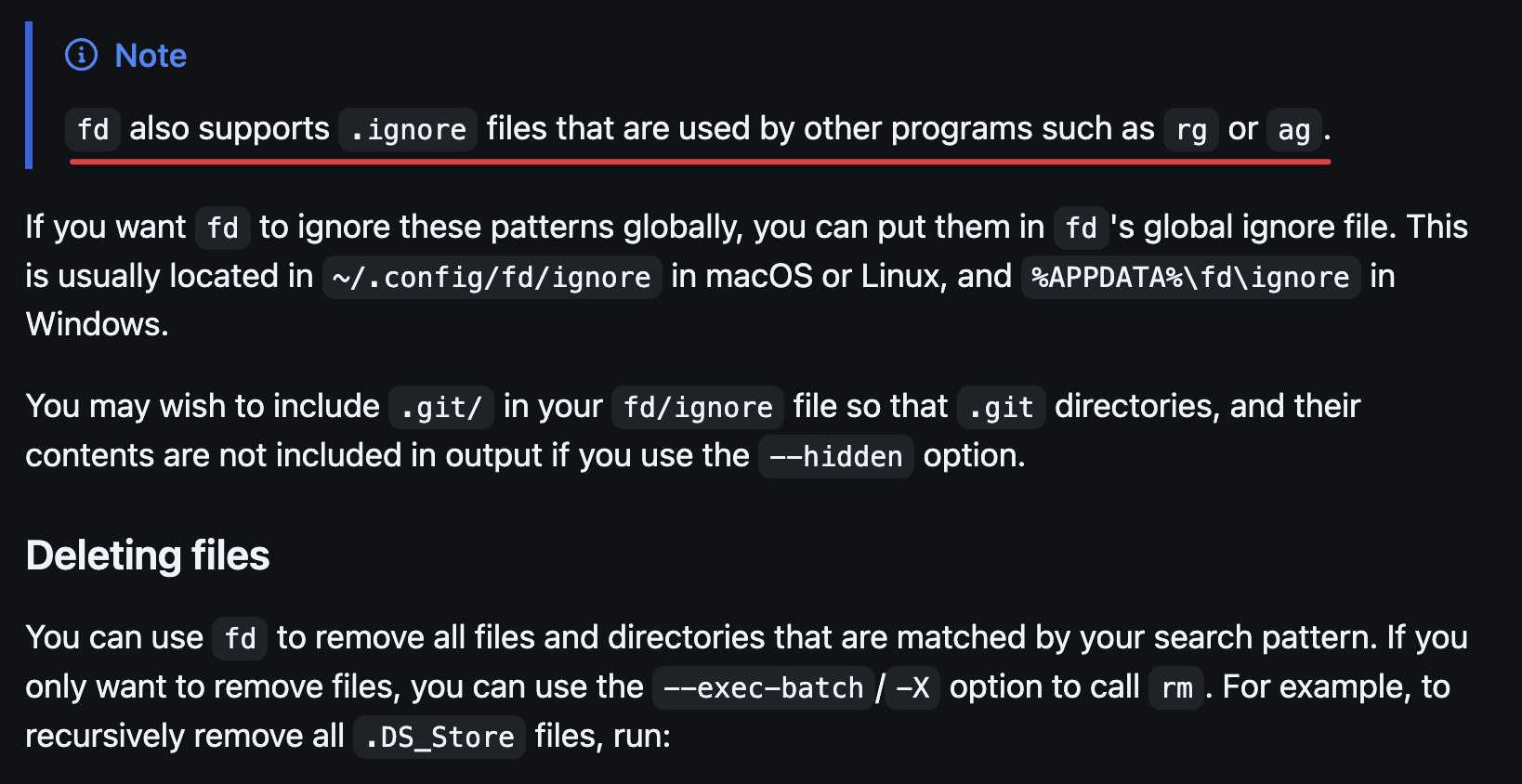
That second point is the real reason. You can define once which folders to include and exclude, and fd will follow those rules every time.
brew install fdOn Debian/Ubuntu the binary is called fdfind, but on macOS via Homebrew it is just fd. If you see tutorials using fdfind, swap it out.
If you just run fd by itself, it lists all files and folders it can find. To list only directories, use the --type d flag:
fd --type dOn its own, that still dumps the full list to the terminal. That is where we pipe it through fzf to get fuzzy search over the results:
fd --type d | fzf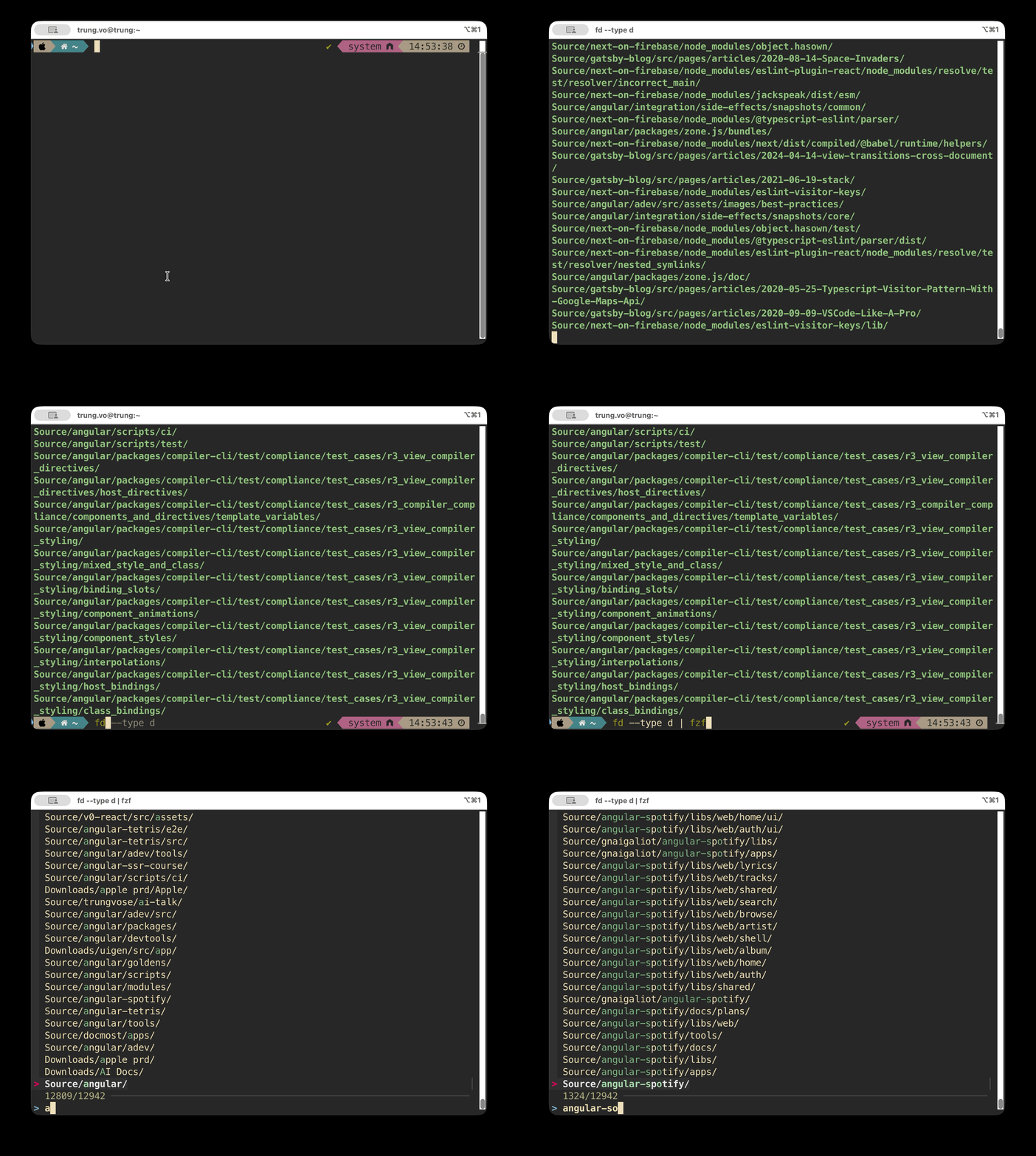
Now you get a searchable list of only directories. Type a few characters, the list narrows, pick one. That is the core of the whole setup.
Control what fd searches with .ignore
By default, fd will crawl everything under your home directory. You do not want that. Thousands of folders inside Library/ will flood your results.
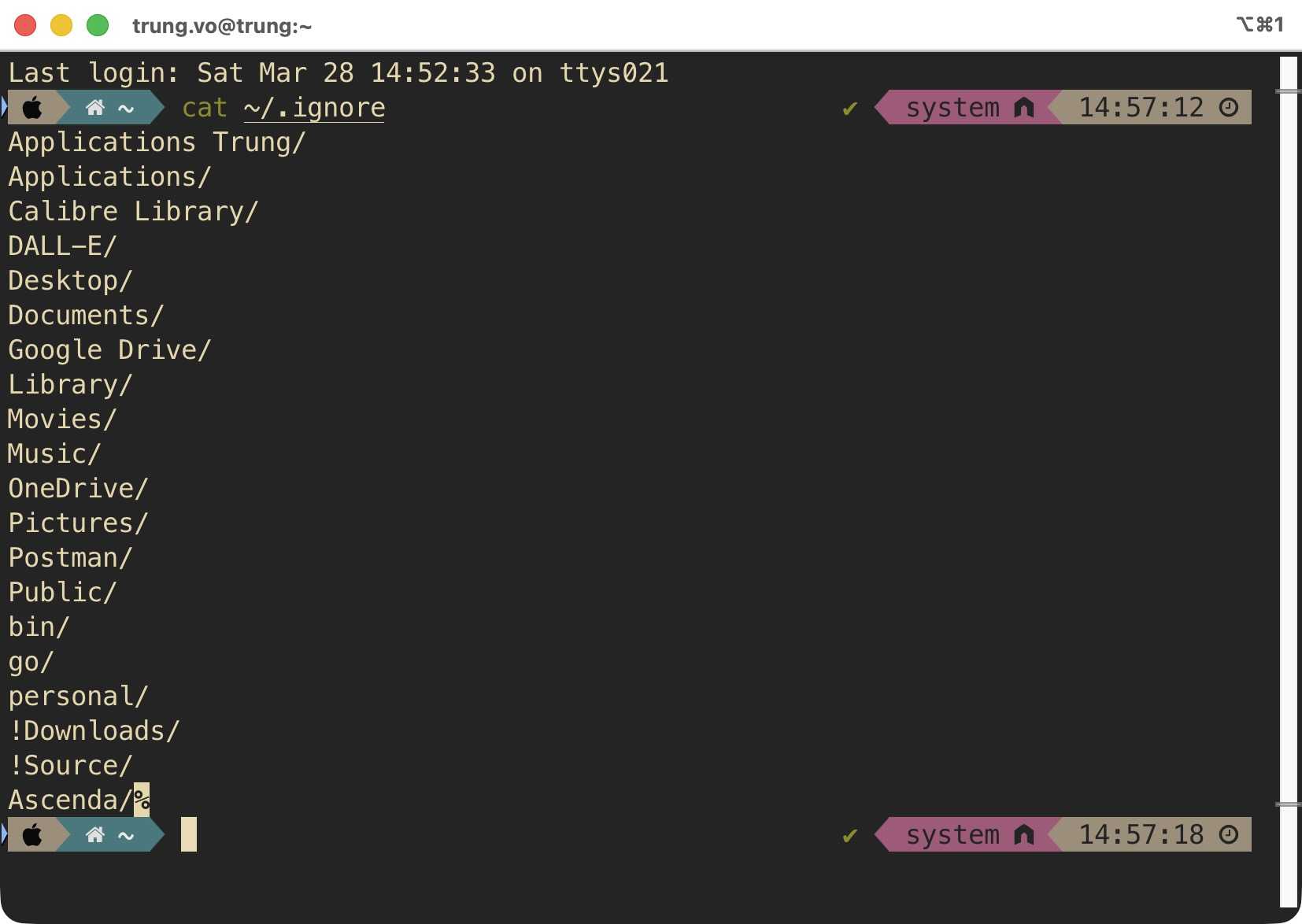
Create a ~/.ignore file. The trick is to block everything first, then allow list the folders you actually care about using !:
To get the list of folder from root, run the following command
cd ~/
ls -d */ | pbcopy
Applications/
Desktop/
Documents/
Library/
Movies/
Music/
Pictures/
Public/
bin/
go/
+ !Downloads/
+ !Source/Lines without ! are ignored by fd. Lines with ! are re-included. So in this setup, only Downloads/ and Source/ get searched. Clean results, fast searches.
Wire it up in .zshrc
Tell fzf to use fd as its default search command, and add a helper function:
export FZF_DEFAULT_COMMAND="fd . $HOME"
export FZF_DEFAULT_OPTS="--bind 'alt-down:first,alt-up:last'"

fzf-open() {
  local dir=$(fd . $HOME --type d | fzf)
  if [ -n "$dir" ]; then
    agy "$dir"
  fi
}
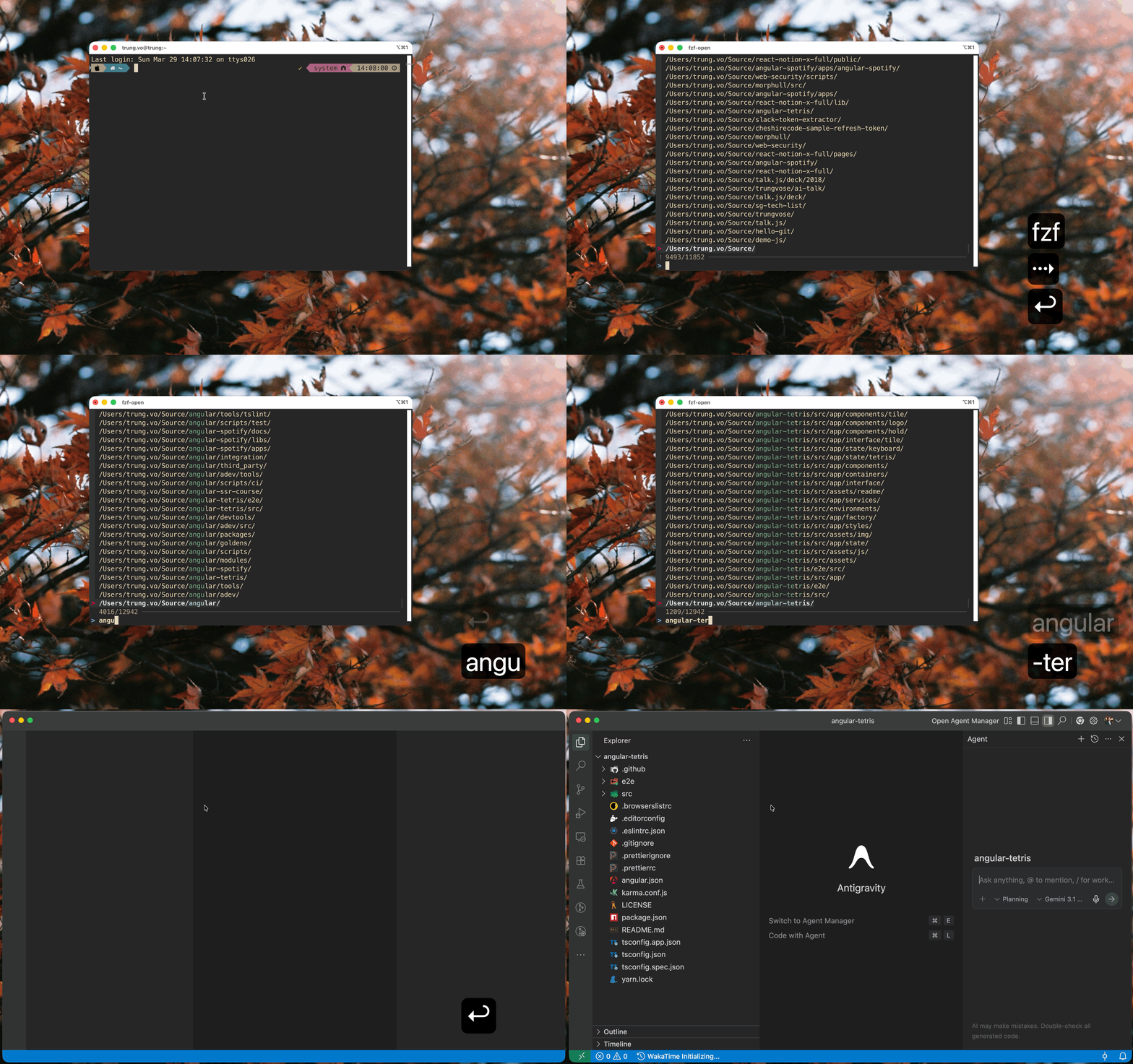
When you type fzf-open, it lists all directories under $HOME (filtered by .ignore), pipes them into fzf, and opens the selected folder. Replace agy with whatever you use to open projects, could be code, cursor, or just cd.
The FZF_DEFAULT_OPTS line adds Alt+Down to jump to the first result and Alt+Up to jump to the last. On Mac, the default Cmd+Up/Down controls text navigation, so fzf cannot use the Command key directly. There is a section below on how to remap that. Useful when you have scrolled through a long list and want to get back quickly.
iTerm2 hotkey to trigger fzf-open
This is the part that makes it feel seamless. Instead of opening a terminal and typing fzf-open, I wanted a single keyboard shortcut from anywhere on my Mac to open a terminal and run fzf-open automatically.
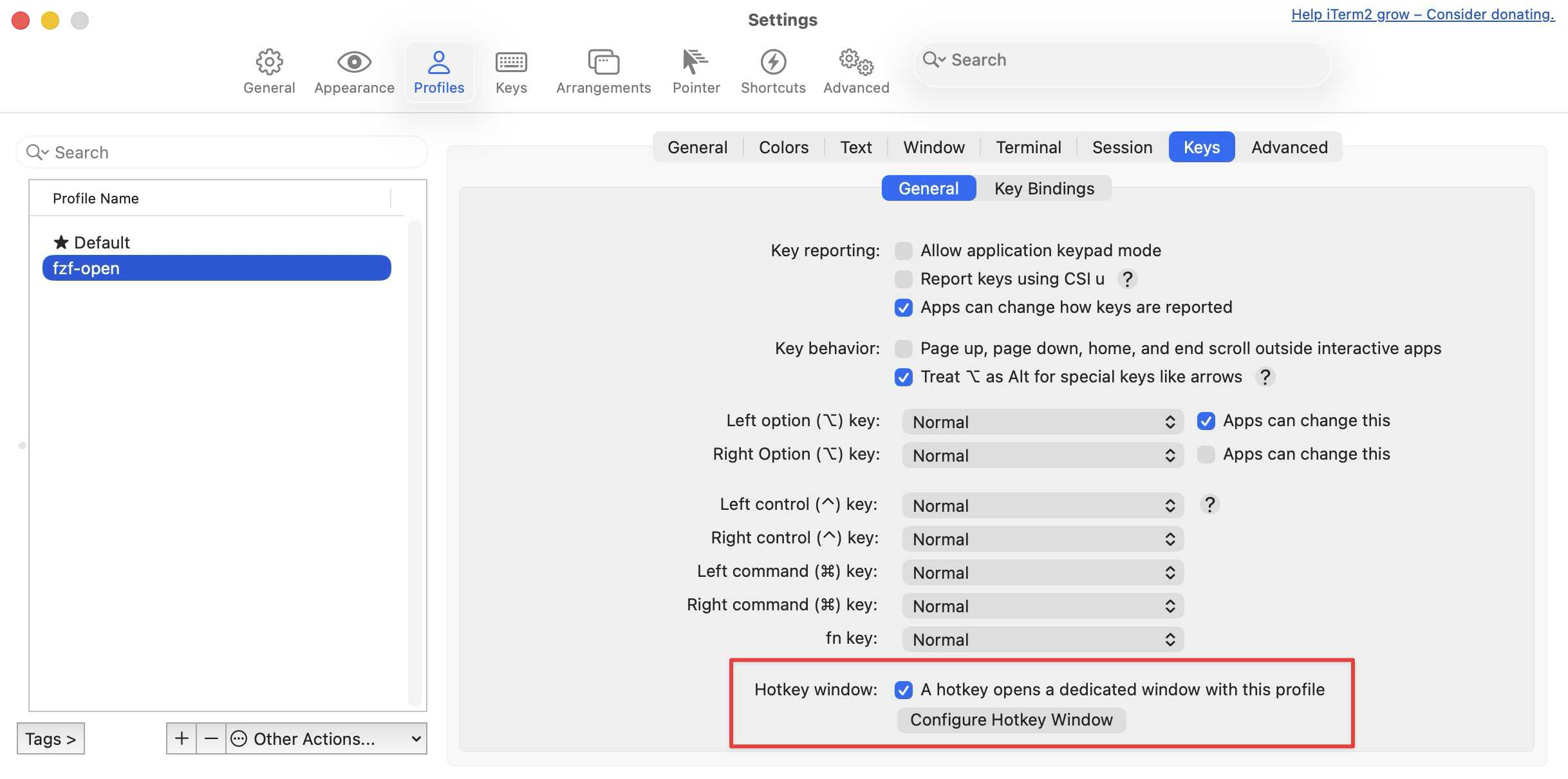
iTerm2 has a Hotkey Window feature that does exactly this:
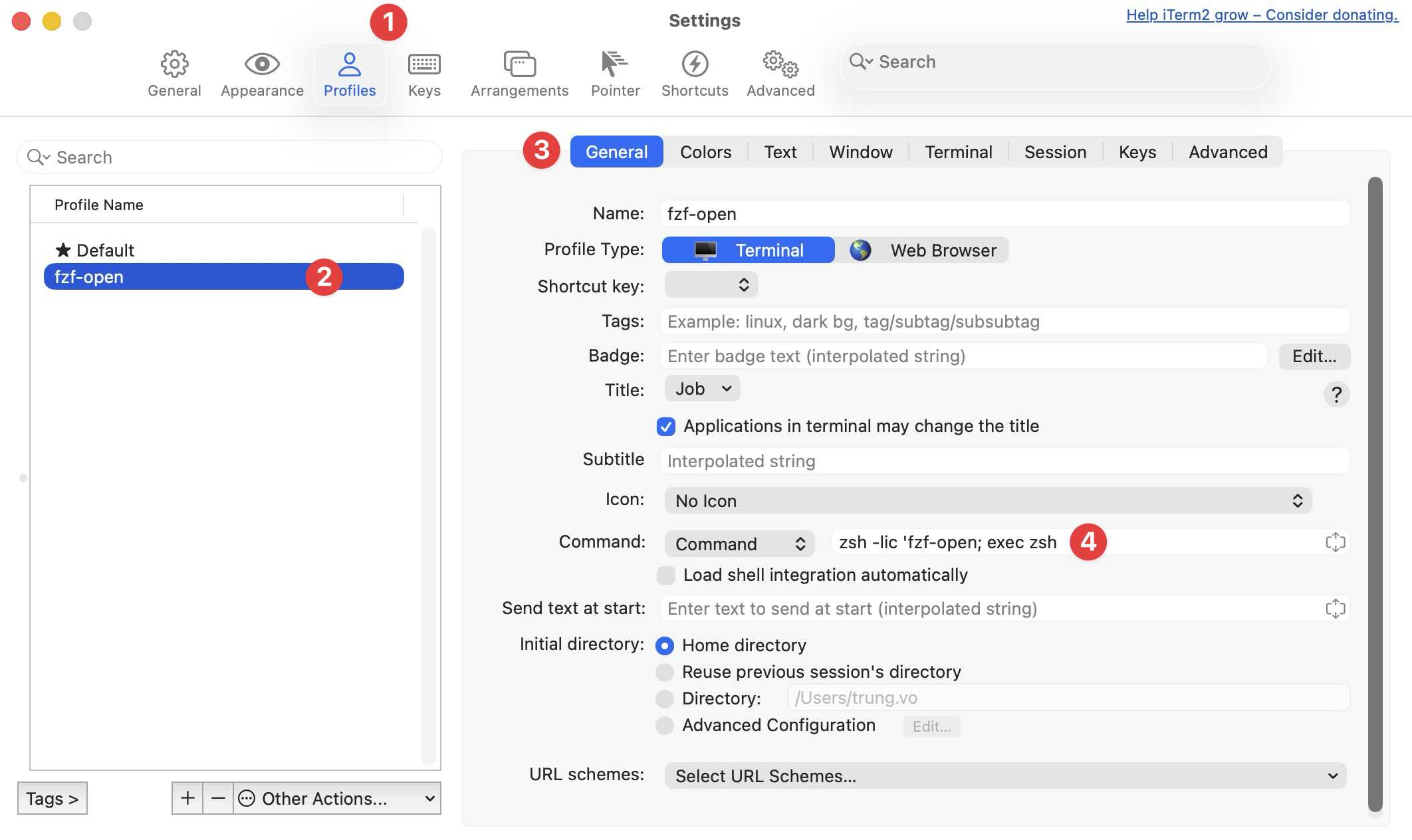
- Open iTerm2 Settings, go to Profiles
- Create a new profile called
fzf-open, set the command tozsh -lic 'fzf-open; exec zsh' - Under Keys, check A hotkey opens a dedicated window with this profile
- Set your preferred shortcut
Make it fast with a dedicated script
My first attempt was to set the profile command to zsh -lic 'fzf-open; exec zsh'. It worked, but it was slow. Every time I triggered the shortcut, zsh would load my entire .zshrc - oh-my-zsh, powerlevel10k, nvm, asdf, pyenv, plugins, completions. All that just to run fd and fzf.
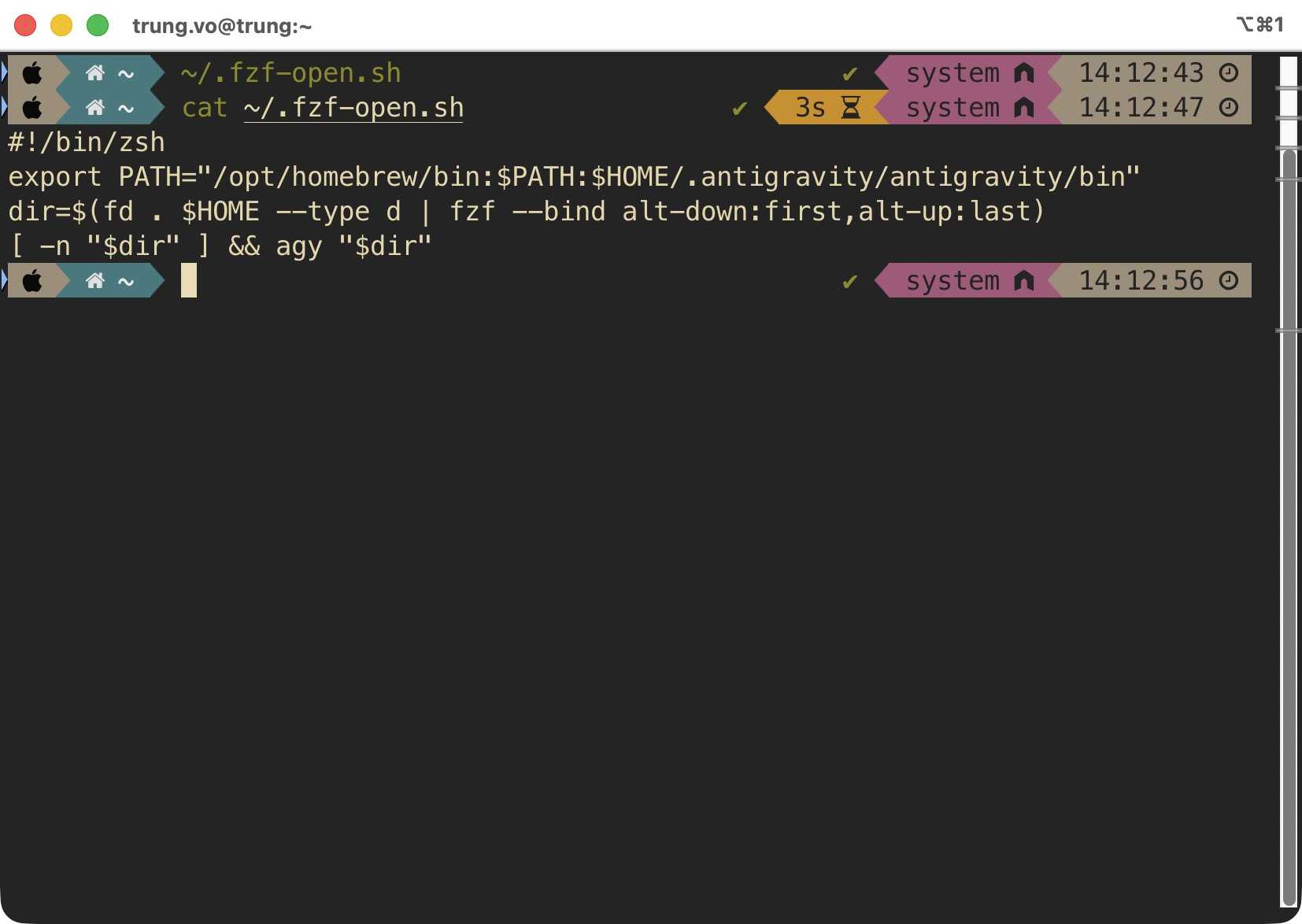
The fix is to skip .zshrc entirely. Create a minimal script at ~/.fzf-open.sh:
#!/bin/zsh
export PATH="/opt/homebrew/bin:$PATH:$HOME/.antigravity/antigravity/bin"
dir=$(fd . $HOME --type d | fzf --bind alt-down:first,alt-up:last)
[ -n "$dir" ] && agy "$dir"
Make it executable:
chmod +x ~/.fzf-open.shThen set the iTerm2 profile command to:
zsh ~/.fzf-open.sh
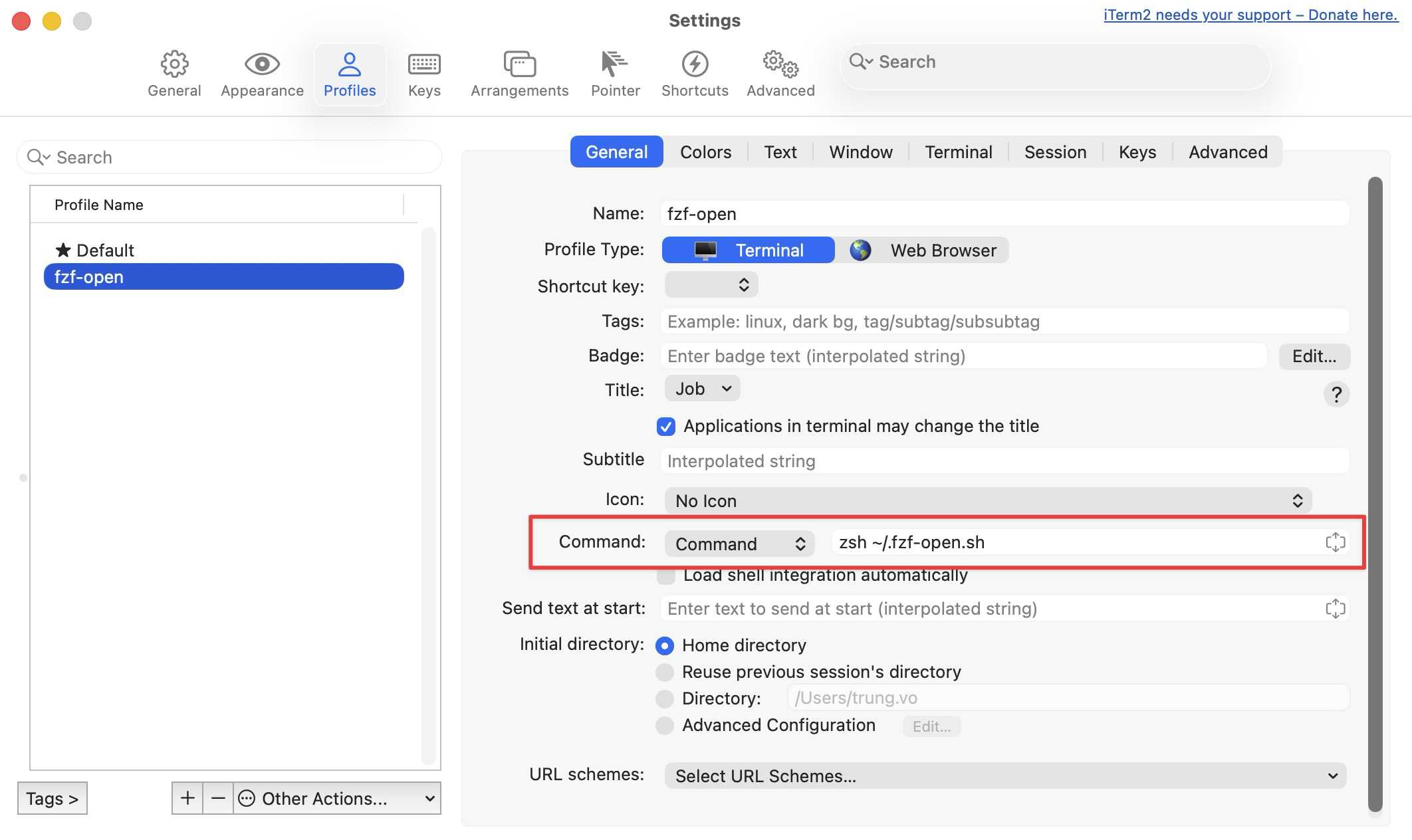
This script only sets the PATH needed for fd, fzf, and agy. Nothing else loads. The difference is noticeable - fzf appears almost instantly instead of waiting a second or two for the full shell to initialise.
Cmd+Up and Cmd+Down in fzf
fzf does not support the Command key natively. The only modifiers it recognises are ctrl-, alt-, and shift-.
But iTerm2 can remap keys. So I mapped Cmd to send Alt escape sequences:
- Go to iTerm2 Settings, Profiles, Keys, Key Mappings
- Add Cmd+Down with action Send Hex Code:
0x1b 0x5b 0x31 0x3b 0x33 0x42 - Add Cmd+Up with action Send Hex Code:
0x1b 0x5b 0x31 0x3b 0x33 0x41
This part was largely suggested by Claude. I have not checked why it maps to these specific hex codes, but they are the escape sequences for Alt+Down and Alt+Up. iTerm2 intercepts the Cmd keypress and sends what fzf actually understands.
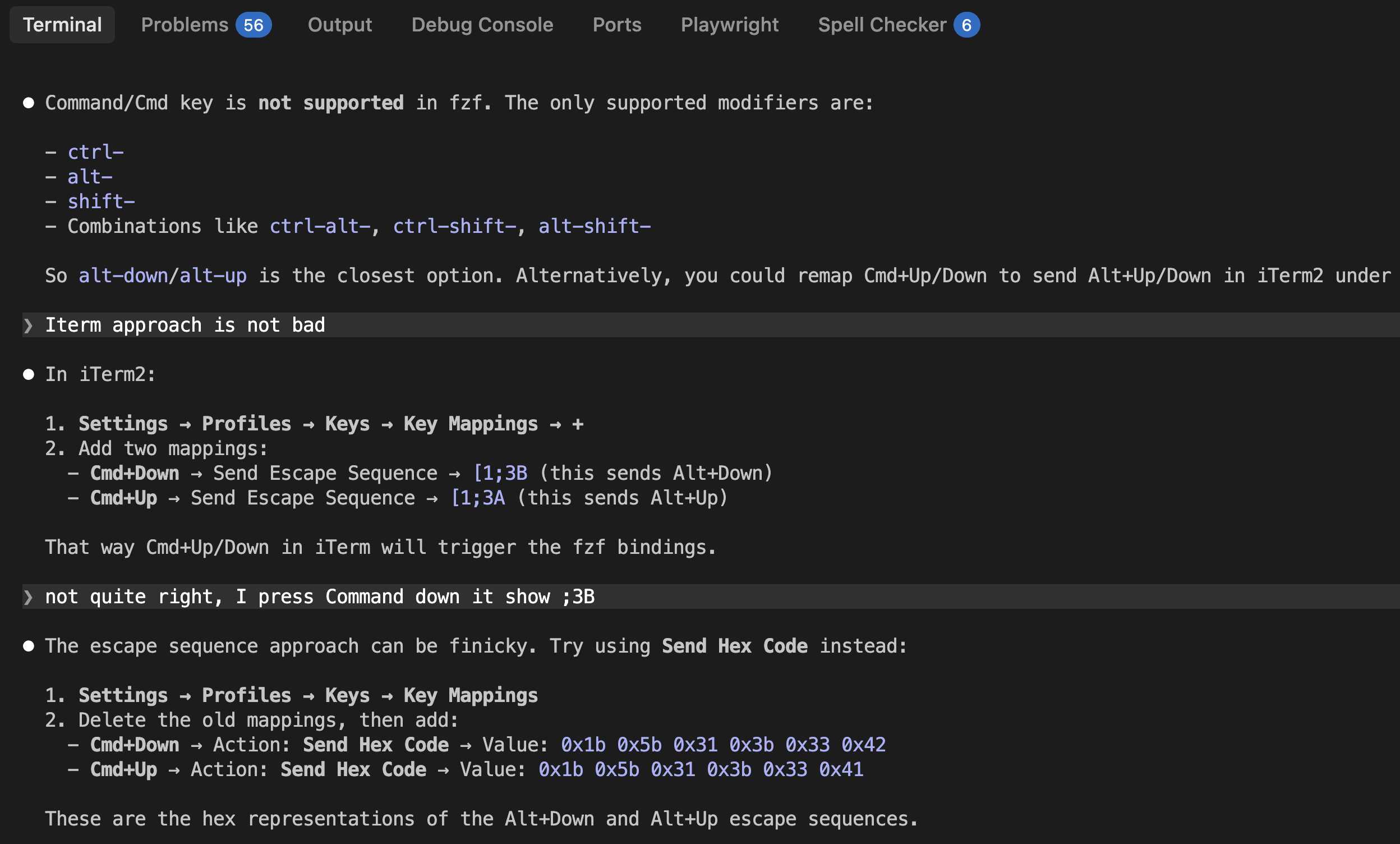
Now Cmd+Down jumps to the first item and Cmd+Up jumps to the last.
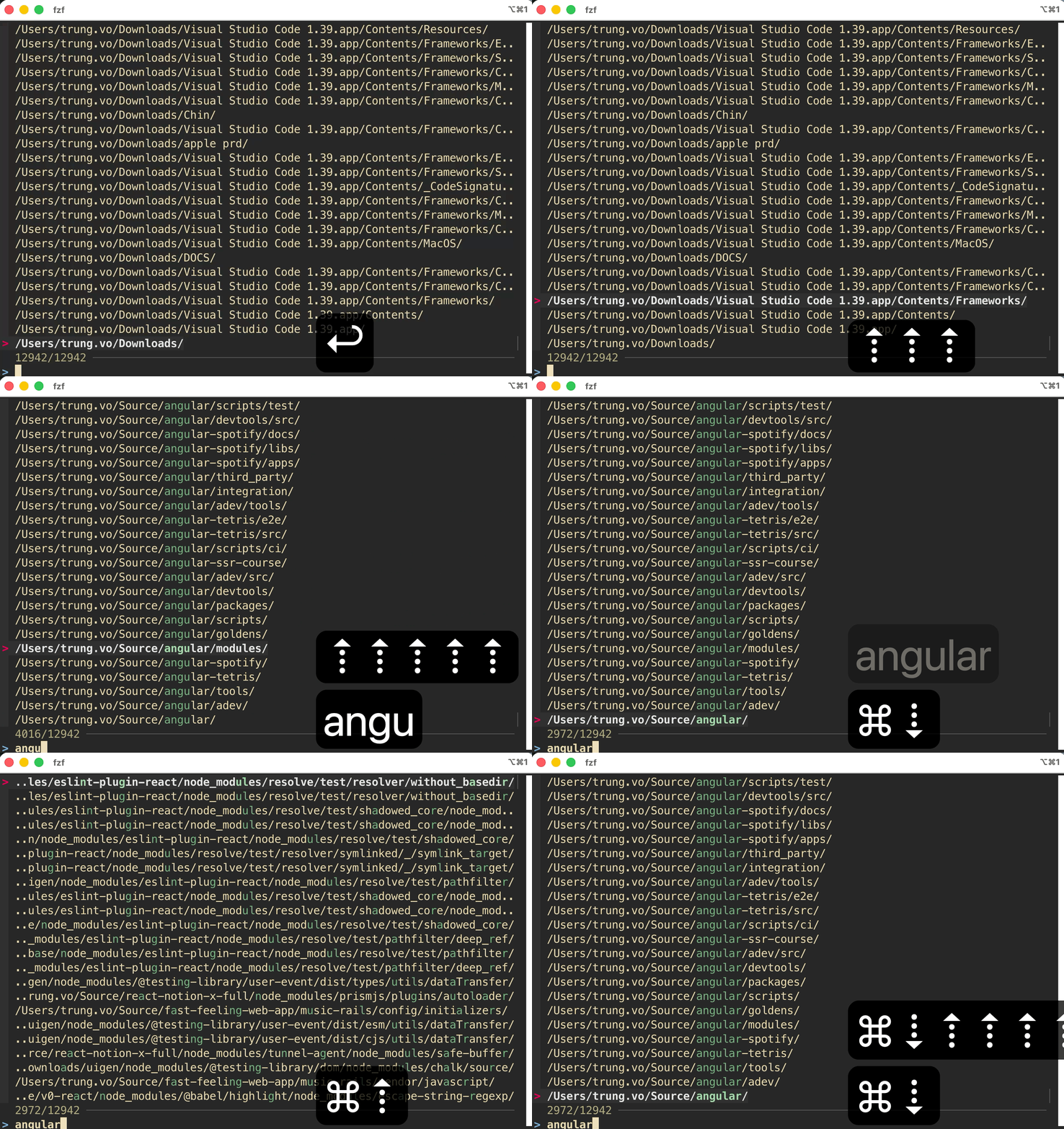
Final Result

One keyboard shortcut from anywhere on macOS. A fuzzy search scoped to only the folders I care about. Pick a folder, hit enter, project opens. The whole thing takes maybe two seconds.
The setup is five pieces working together: fd for fast directory listing, .ignore for scoping, fzf for fuzzy matching, a shell function to glue it together, and iTerm2 hotkey window to make it globally accessible.
Such a good way to bring joy to my daily work.
Published 27 Mar 2026